
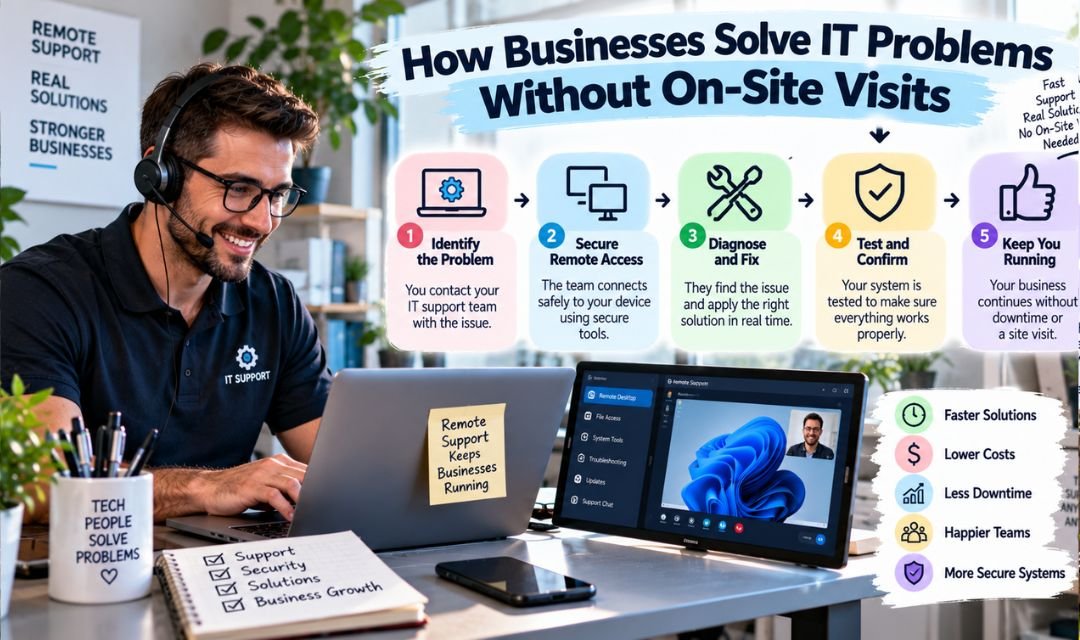
Picture this: a staff member arrives at the office, opens their laptop, and nothing works. The VPN won’t connect, a critical application keeps crashing, and a client call is forty minutes away. The old answer was to wait for a technician to drive over. The newer answer, the one that most businesses have quietly adopted, is to have the problem fixed before the coffee finishes brewing, without anyone setting foot through the door.
This article walks through how remote IT troubleshooting actually works under the hood, which scenarios it handles well and which ones it doesn’t, how to evaluate providers intelligently, and what security considerations you genuinely need to think about before granting anyone remote access to your systems.
What Actually Happens During a Remote IT Session
Most people have experienced remote support at least once, usually as a passive observer watching their cursor move on its own while a technician fixes something. But the mechanics behind that experience are worth understanding, because they affect both the quality of support you receive and the risks involved.
Remote access tools work by establishing an encrypted connection between the technician’s machine and yours. Software like TeamViewer, AnyDesk, Splashtop, or enterprise-grade solutions built into remote monitoring and management platforms create a secure tunnel. The technician sees your screen in real time and can control your keyboard and mouse, transfer files, run diagnostics, and access system logs as if they were sitting right next to you.
Beyond screen sharing, many IT providers use remote monitoring and management software, often called RMM, running quietly in the background on company devices. This lets technicians spot problems before users even notice them. A disk approaching capacity, a failing memory module throwing errors, or a security patch that failed to install can all be caught and addressed proactively. The session you see is sometimes just the visible tip of a much deeper diagnostic process.
Common IT Problems That Resolve Well Remotely
Not every technical issue requires a physical presence. A wide range of everyday problems are resolved completely and reliably over a remote connection, often faster than an on-site visit would allow. Here are the categories that fit best.
- Software installation, updates, and configuration errors
- User account issues, including password resets and permission changes
- Email client problems and Microsoft 365 or Google Workspace troubleshooting
- VPN connectivity failures and network configuration adjustments
- Malware removal and post-infection cleanup
- Printer and peripheral driver conflicts
- Operating system errors and blue screen diagnosis
- Cloud application support and integration issues
- Backup verification and recovery testing
- Performance issues caused by runaway processes or resource conflicts
The common thread across all of these is that the fix lives in software, settings, or configuration rather than physical hardware. A technician who can see your system and run commands on it has almost everything they need to address these issues effectively.
When Remote Support Has Real Limits
Honesty matters here. Remote troubleshooting is not a replacement for every kind of IT support. There are situations where physical presence is not optional.
| Scenario | Remote Support Effective? | Why |
| Software crash or configuration error | Yes | Technician can access logs, reinstall, and reconfigure remotely |
| VPN or network connectivity issue | Mostly yes | Can resolve if some internet access exists; full outage is harder |
| Malware infection with system still accessible | Yes | Can run tools, quarantine threats, and clean the system |
| Complete hardware failure (dead hard drive, broken screen) | No | Physical replacement required |
| Network infrastructure failure (router, switch down) | No | Device must be physically accessed or replaced |
| New workstation setup and cabling | No | Hardware must be physically installed and connected |
| Server room issues involving physical components | No | Hands-on access is necessary |
A good IT provider is upfront about this distinction. If a vendor promises that everything can be handled remotely, that is a red flag. The honest answer is that remote support handles the majority of day-to-day issues very well, but physical dispatch remains necessary for hardware problems, infrastructure failures, and new equipment deployments.
Security: What to Ask Before Granting Remote Access
Giving an external party control of your computer, even temporarily, carries inherent risk. The good news is that reputable providers have well-established practices to keep those sessions safe. The bad news is that not every provider meets that bar. Knowing what to ask protects you.
According to the Verizon 2023 Data Breach Investigations Report, stolen credentials and exploitation of remote desktop protocols are among the most common vectors in confirmed breaches. That doesn’t mean remote support is inherently dangerous. It means the safeguards around it matter enormously.
- Ask whether sessions are encrypted end-to-end and what protocol is used.
- Confirm that access requires explicit user approval each time, not persistent open access.
- Check whether session activity is logged and available for your review.
- Ask if technicians use multi-factor authentication to access their own support tools.
- Find out whether the provider carries cyber liability insurance.
- Verify that any remote access software used is a known, commercially licensed product, not a free consumer tool.
- Confirm that access is revoked immediately when a support engagement ends.
These aren’t bureaucratic checkboxes. Each one closes a real gap. Persistent, always-on access credentials that aren’t properly managed have led to breaches at companies that assumed their IT vendor was being careful. Assume nothing. Ask directly.
How to Evaluate a Remote IT Provider
Choosing who gets access to your systems is a significant decision. The market for managed IT and remote support has expanded considerably over the past decade, which means more options but also more variation in quality. A few criteria cut through the noise.
Response time is often the most visible metric, but it can mask deeper problems. A provider might answer tickets quickly but resolve issues slowly due to undertrained staff or poor tooling. Look for published resolution time averages, not just initial response times, and ask for references from clients in your industry or of similar size.
Businesses evaluating remote support services should also consider whether the provider uses a proactive monitoring model or a purely reactive one. Proactive monitoring catches problems before they affect productivity. Reactive-only support means you’re always the one initiating contact after something breaks, which costs more in downtime over time.
Ticketing transparency is another underrated factor. A provider that gives you a client portal where you can see the status of every open issue, who is working on it, and what steps have been taken is a provider that has nothing to hide. Opacity in ticketing often signals disorganization behind the scenes.
Questions Worth Asking Any Prospective Provider
- What is your average resolution time for Tier 1, Tier 2, and Tier 3 issues?
- Do you offer 24/7 support or only business-hours coverage?
- How many clients does each technician typically support?
- What happens when a problem genuinely requires on-site presence?
- How do you handle after-hours emergencies?
- Can I speak with a current client in my industry as a reference?
The Real Cost Equation: Remote vs. On-Site Support
One of the most practical arguments for remote IT support is economic. On-site visits carry inherent overhead: travel time, scheduling delays, and in some contracts, minimum billing increments that can make a fifteen-minute fix expensive. Remote support eliminates travel from the equation entirely, which means faster resolution and lower cost for issues that don’t require physical presence.
A 2022 study by Aberdeen Group found that companies using remote monitoring and management tools experienced 45 percent less unplanned downtime than those relying on break-fix models. Downtime is rarely just a nuisance. For small and midsize businesses, even a few hours of lost productivity per month can translate to thousands of dollars in aggregate over a year, when you account for staff wages, lost transactions, and the time required to catch up afterward.
That said, cost should not be the only driver. A provider that is cheap because they skip security practices, run lean on staff, or use inadequate tools will cost more in the long run when a breach or extended outage occurs. The right frame is value, not just price.
Wrapping Up: What Smart Businesses Do Differently
Businesses that handle IT well share a few habits. They treat support as infrastructure rather than an afterthought. They vet providers carefully before granting system access. They insist on documented security practices and audit trails. And they understand the difference between problems that can be solved in minutes from anywhere and problems that genuinely need someone in the room. Getting that distinction right means fewer surprises, faster recovery when things go wrong, and a technology environment that actually supports the work rather than interrupting it.