
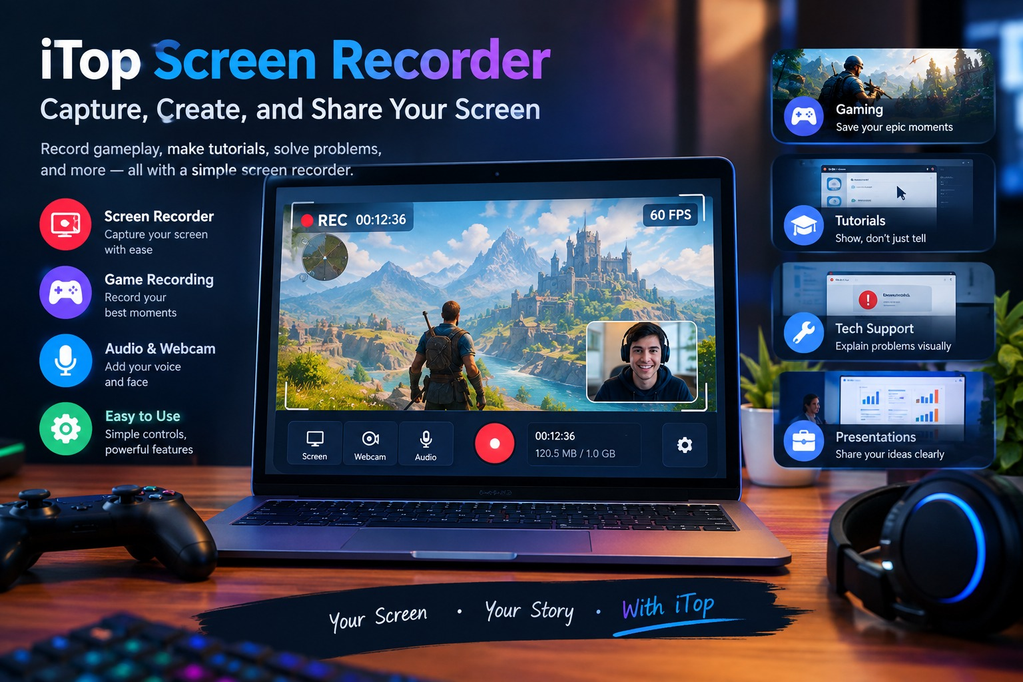
Screen recording has become an important part of modern digital work. People record their screens for tutorials, online classes, software demonstrations, gaming videos, presentations, troubleshooting guides, and many other purposes. Instead of explaining what appears on a computer screen through written instructions, a video can show every step visually.
For users who need a convenient way to capture desktop activity, iTop Screen Recorder provides a practical solution. A modern screen recorder can capture different areas of a display, record applications, and include audio when required. These capabilities make screen recording useful for both professional and everyday users.
What Is a Screen Recorder?
A screen recorder is software that captures activity displayed on a computer or device screen and saves it as a video file. Depending on the software, users may be able to record the entire display, a specific window, or a selected area.
Screen recording can be useful when a normal screenshot is not enough. A screenshot captures a single moment, while a recording can demonstrate an entire process.
For example, someone explaining how to install software could capture every step from opening the installer to completing the setup. Similarly, a teacher could record a lesson while demonstrating information on the screen.
Introducing iTop Screen Recorder
iTop Screen Recorder is designed to make desktop recording accessible without requiring advanced video-production knowledge. It can be used to capture screen activity for different types of projects, including tutorials, presentations, online content, and gameplay.
The software provides recording controls that allow users to choose what they want to capture. This flexibility is useful because not every recording requires the entire desktop.
Someone creating a software tutorial may want to record only one application window, while a gamer may prefer to capture the complete gameplay area.
Recording Different Areas of the Screen
One useful feature of a screen recording application is the ability to select the recording area.
Users may want to capture:
- The entire desktop
- A specific application
- A selected section of the display
- A particular window
- Online video or presentation content
Selecting only the necessary area can make the final recording cleaner. It also prevents unrelated desktop activity from appearing in the video.
Before starting a recording, it is a good idea to check the selected region and confirm that everything important is visible.
Adding Audio to Screen Recordings
Visual information is often more useful when combined with narration. For tutorials and demonstrations, users may want to explain what they are doing while recording the screen.
A screen recorder can capture microphone input along with the visual content. This makes it possible to create instructional videos without recording the narration separately.
For example, a software instructor can demonstrate a feature while explaining each step through a microphone. A gamer can record gameplay with commentary, while a business user can create a presentation with spoken explanations.
Before recording, users should check their microphone settings and perform a short test. This can help avoid problems such as low volume or unwanted background noise.
Screen Recording for Tutorials
Tutorial creation is one of the most common uses of screen recording software.
Written instructions can sometimes be difficult to follow, particularly when a process involves multiple menus and settings. A video can make the same process easier to understand by showing exactly where to click.
A tutorial created with iTop Screen Recorder can demonstrate software features, website navigation, computer settings, or other visual processes.
Creators can also combine screen recording with narration to provide additional context.
Recording Online Classes and Presentations
Remote education has increased the need for digital recording tools. Students and teachers may want to record presentations, demonstrations, or educational material for later reference.
Businesses can also use screen recordings during online meetings and presentations when appropriate permissions are available.
A recorded presentation can be useful when team members cannot attend a live session. It can also provide a reference that people can review later.
However, users should always respect privacy and obtain permission before recording meetings, classes, or content involving other people.
Capturing Gameplay
Gaming is another area where screen recording is widely used. Players often record gameplay to share highlights, create tutorials, analyze strategies, or publish videos online.
A good gaming recording should capture the important visual content without unnecessarily distracting the player. Audio settings are also important because gamers may want to include game sounds, microphone commentary, or both.
Using a dedicated recording application can simplify this process and allow players to focus on the game rather than complicated recording settings.
Why Video Quality Matters
Recording a screen is only useful if the final video is clear enough to understand. Resolution, frame rate, and compression can all affect the appearance of the finished recording.
For tutorials, text and interface elements should remain readable. For gameplay, smooth movement is often important. For presentations, slides and charts should be easy to see.
Users should therefore select recording settings according to the intended purpose. A very high-quality recording may create larger files, while excessive compression can reduce clarity.
Finding the right balance can make the recording easier to store, edit, and share.
Managing Recorded Files
Long screen recordings can consume significant storage space. Before starting a lengthy session, users should make sure enough disk space is available.
It is also useful to organize recordings using meaningful file names. For example, instead of leaving multiple files with generic names, users can label them according to the project or date.
Organized files are easier to locate when they need to be edited or shared later.
Preparing Before You Record
A little preparation can prevent many common recording problems.
Before starting, check the following:
- Make sure the correct recording area is selected.
- Check microphone and system-audio settings.
- Close unnecessary applications.
- Confirm that sufficient storage space is available.
- Remove private information from the desktop if it will appear in the recording.
- Perform a short test recording.
- Prepare the material or script before beginning.
These simple steps can make the final video more professional and reduce the need to repeat a recording.
Screen Recording for Content Creators
Content creators can use screen recording in many creative ways. Technology bloggers can demonstrate software, educators can create lessons, and businesses can produce product tutorials.
A recording can also become part of a larger video project. After capturing the screen, creators can edit the footage, add captions, transitions, background music, or other elements using their preferred editing software.
This makes a screen recorder a useful part of a broader content-creation workflow rather than a standalone tool.
Protecting Privacy While Recording
Screen recordings can accidentally capture sensitive information. Notifications, private messages, passwords, email addresses, and personal files may appear on the desktop without the user noticing.
Before recording, close private applications and disable notifications where appropriate. Review the final video before publishing or sharing it.
When recording another person’s content, meeting, or presentation, make sure you have the necessary permission.
Final Thoughts
Screen recording is useful for education, business, gaming, tutorials, presentations, and online content creation. A reliable screen recorder can turn complex visual processes into easy-to-follow videos while reducing the effort required to explain something through text alone.
iTop Screen Recorder provides a convenient way to capture desktop activity and create recordings for different purposes. By selecting the right recording area, configuring audio correctly, choosing suitable quality settings, and preparing the desktop before recording, users can produce clearer and more useful videos.
Whether you are creating a software tutorial, recording a presentation, demonstrating a process, or capturing gameplay, screen recording can make digital communication more visual, practical, and engaging.